
SpinBit Registration, Login, and Verification in New Zealand
Your SpinBit registration gives you one profile for the full casino and sportsbook catalogue. Complete SpinBit sign up in under two minutes: register through email, a mobile number, or instant social login, then move straight into live dealer tables, pokies, and betting markets on the NRL, Super Rugby, and cricket. A verified account lets you deposit in NZD and process withdrawals without extra checks at the cashier. New players across New Zealand claim a 100% match bonus up to 1,000 NZD plus 100 Free Spins on their first deposit.
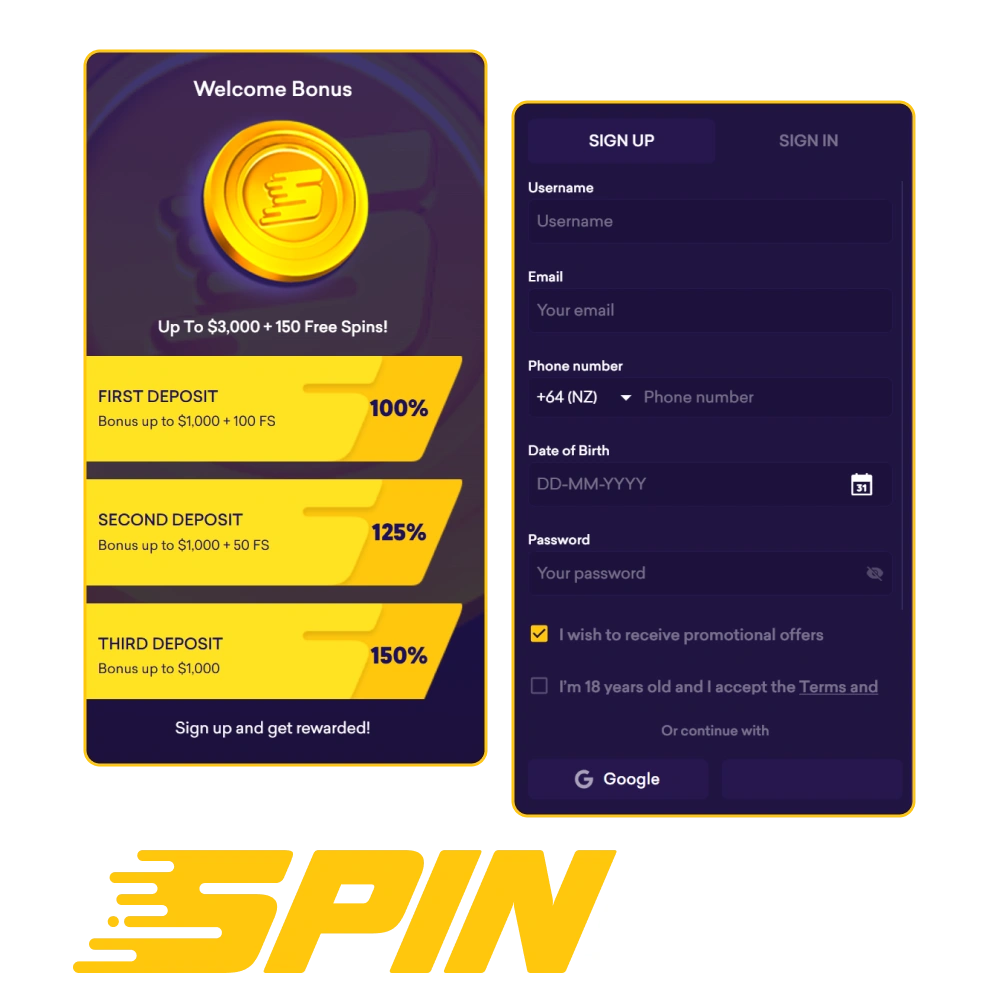
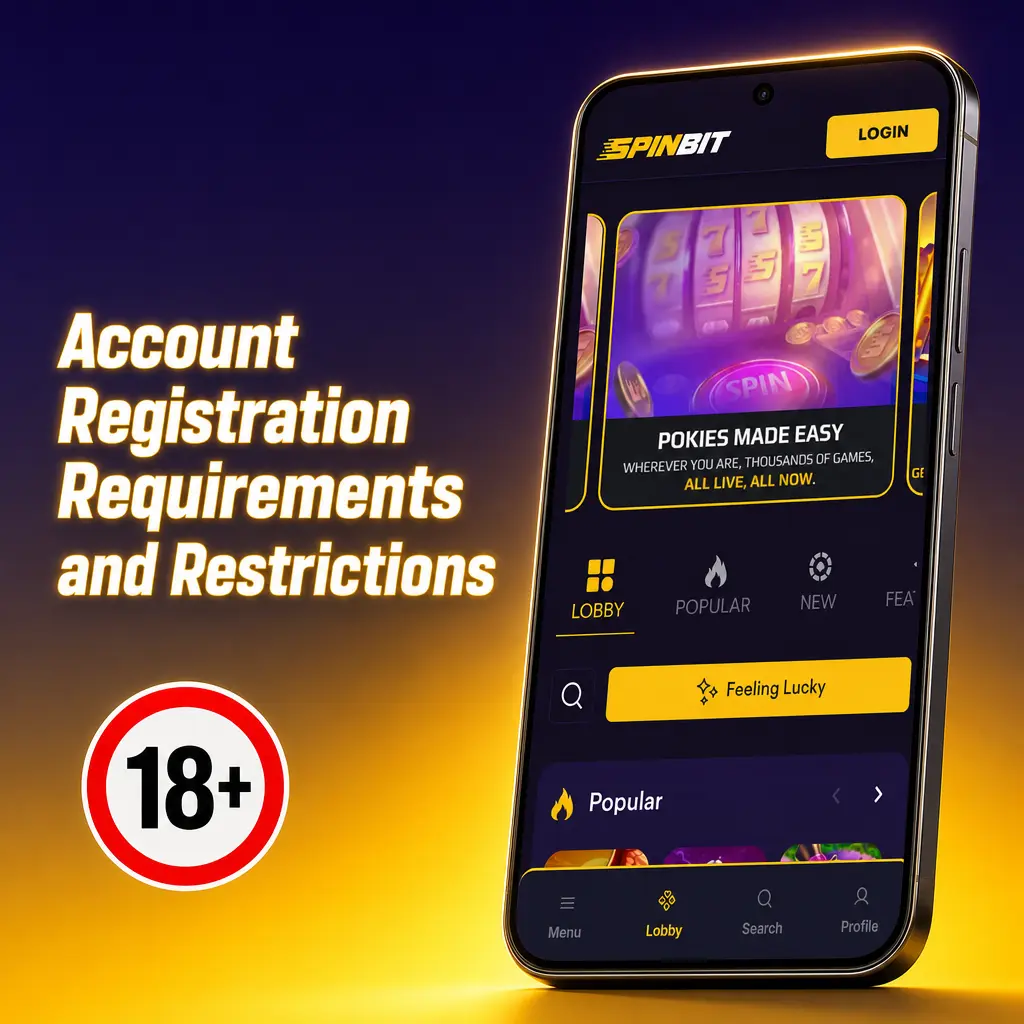
Account Registration Requirements and Restrictions
A few basic rules apply before you create a new account on SpinBit.
- You must be at least 18 years old to register.
- You may hold only one account per person, household, and payment method.
- Provide your full legal name, date of birth, and residential address exactly as they appear on your official ID.
- Use a valid email address and phone number, both required for verification and account recovery.
- Confirm your country of residence during sign up, since some jurisdictions are not eligible.
SpinBit does not accept registrations from the following countries and territories:
- United States;
- United Kingdom;
- France;
- Spain;
- Netherlands;
- Australia;
- Italy;
- Poland;
- Ukraine;
- Curaçao.
How to Register on SpinBit in New Zealand
6 stepsRegistration on SpinBit takes under two minutes from a desktop or smartphone in New Zealand.
Click Sign Up
Select the Sign Up button on this page to open the registration form.
Choose Your Registration Method
Pick email, mobile number, or instant social login to start your profile.
Enter Your Personal Details
Add your full name, date of birth, residential address, and preferred currency (NZD).
Set a Password and Confirm Your Details
Create a secure password, tick the box confirming you are 18 or older, and accept the terms of service.
Verify Your Email or Phone Number
Open the confirmation link sent to your inbox or enter the OTP code sent by SMS.
Make Your First Deposit
Fund your account and your 100% match bonus up to 1,000 NZD plus 100 Free Spins activates automatically.
SpinBit KYC Verification Process
KYC verification confirms your identity and protects your account from fraud. SpinBit requires this check under standard compliance rules for licensed operators. Complete it once, and future cashouts process without repeat document requests.
- Upload a valid passport, driver’s licence, or national identity card.
- Submit proof of address dated within the last 3 months, a utility bill or bank statement works.
- Take a clear selfie holding your ID for facial match confirmation.
- Wait for review; most checks complete within 24 hours, and some approve instantly.
Navigating Your SpinBit Account Dashboard
Your account dashboard centralises every tool you need after login.
- Cashier: deposit and withdraw in NZD through your saved payment methods;
- Bet History: review past casino sessions and sportsbook wagers with full timestamps;
- Bonuses: track active offers, wagering progress, and expiry dates;
- VIP Program: monitor your tier status and loyalty points balance;
- Responsible Gambling Tools: set deposit limits, session reminders, or time-outs directly from your profile.

Managing Profile Security and Settings
From your dashboard, you can update your password at any time under Account Settings. Two-Factor Authentication (2FA) adds a code step at login, sent by SMS or generated through an authenticator app. Enabling 2FA reduces the risk of unauthorised access to your profile. You can also review your last login history and connected devices from the same panel.
SpinBit Registration Bonus for Players from New Zealand
Every new player from New Zealand qualifies for a 100% match bonus up to 1,000 NZD plus 100 Free Spins after registration. The offer activates on your first deposit, and the free spins credit to selected pokies within 24 hours. Check the table below for the exact terms before you opt in.
| Detail | Value |
|---|---|
| Bonus type | 100% deposit match |
| Maximum bonus | 1,000 NZD |
| Free Spins | 100, credited on eligible pokies |
| Minimum qualifying deposit | 20 NZD |
| Wagering requirement | 35x the bonus amount |
| Time to clear | 30 days from activation |

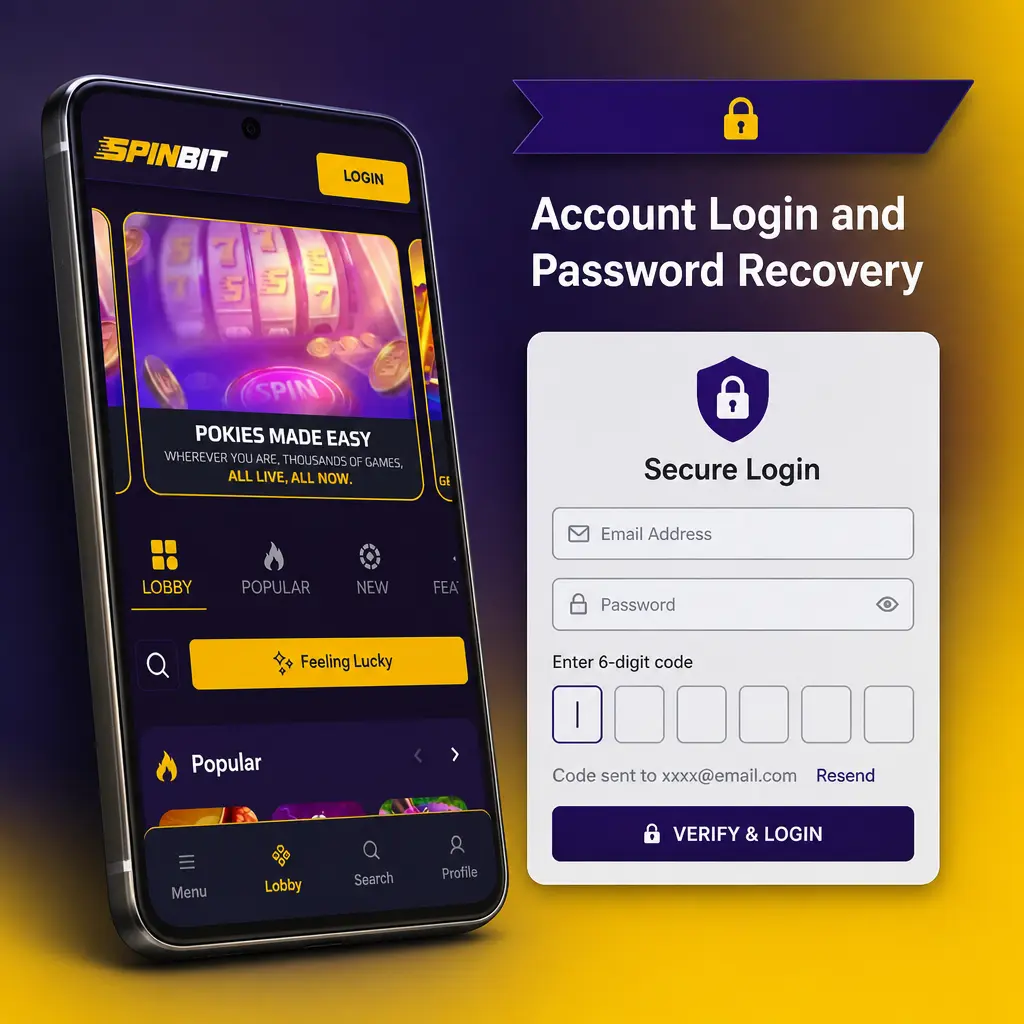
Account Login and Password Recovery
Log in to SpinBit in three steps from any device.
- Click Log In at the top of the page.
- Enter your registered email or phone number along with your password.
- Select Log In to reach your dashboard.
Forgot your password? Reset it in four steps.
- Click Forgot Password on the login screen.
- Enter the email address or phone number linked to your account.
- Open the reset link or code sent to you and follow the instructions.
- Create a new password and log in with your updated credentials.
How to Register on SpinBit via Mobile App
5 stepsMobile registration follows the same process as desktop, completed straight from your phone’s browser. Install the SpinBit web app for quicker access to your account on any future visit.
Open SpinBit in Your Mobile Browser
Visit the site through Chrome or Safari on your Android or iOS device.
Add SpinBit to Your Home Screen
Tap the browser menu and select Add to Home Screen to install the app icon.
Launch the App and Tap Sign Up
Open the new icon from your home screen and start the registration form.
Complete Your Details
Enter your name, date of birth, address, and preferred currency (NZD).
Verify and Deposit
Confirm your email or phone number, upload your ID, and deposit to activate your bonus.
Possible Problems and Their Solutions When Registering on SpinBit
Registration usually goes through without issues, though a few situations can slow you down.
| Problem | Solution |
|---|---|
| Verification email not received | Check your spam folder; request a new link after 60 seconds |
| Phone number already registered | Contact support to check for a duplicate account under the one-account policy |
| Document upload rejected | Retake the photo in daylight, keep all four corners visible, and avoid glare |
| Deposit not showing in Cashier | Confirm the payment method matches your account name; refresh the Cashier page |
| Password reset email delayed | Wait 5 minutes, check spam, then request a new reset link |
How to Delete Your SpinBit Account
You keep full control over your data and can close your SpinBit account at any point.
- Contact support through live chat or email and request account closure.
- Confirm your identity with your registered email and account details.
- Choose between temporary self-exclusion, from 24 hours up to 5 years, or permanent closure.
- Receive a confirmation email once closure completes, typically within 24 to 48 hours.
Contacts and Customer Support in Terms of Registration
SpinBit’s support team operates 24/7 to resolve registration and verification issues for players across New Zealand.
- Live chat, available directly on the site around the clock;
- Email support for detailed account and document queries;
- Help Centre with searchable articles on registration, deposits, and verification;
- Social media channels for updates on promotions and scheduled maintenance.
FAQ
How long does SpinBit verification take?
Most document reviews complete within 24 hours after you submit your ID and proof of address.
Can I register on SpinBit from a mobile browser?
Yes, add the site to your home screen as an app icon and complete the same sign up form used on desktop.
What currency does SpinBit accept for New Zealand players?
You can deposit and withdraw in NZD, alongside other supported currencies at the Cashier.
Can I have more than one SpinBit account?
No, SpinBit allows one account per person, household, and payment method under its fair play policy.
What happens if I forget my password?
Click Forgot Password on the login screen, enter your registered email or phone number, and follow the reset instructions.
Updated:
Comments